- Initial Home Page and Basic Search
- Downloading files
- Finding Newsgroups
- Working with bookmarks
- Tips and tricks
1. After registration
Immediately after registering you will receive an email with the subject "Your Newshosting.com: New account". This email will contain your login credentials to both the Newshosting client software and the account administration located here, this is the
same login information that you entered at the time of signup.
2. Downloading the Newshosting client
If you did not download the client at the time of account signup you can log in to your account control panel where you can download and install the Newshosting client.
3. Entering your login data
After installation your Newshosting client will launch automatically. When starting the client for the first time, you will be requested to enter your login data. The username you created at the time of signup and the password can be found in the "Your Newshosting.com: New account" email you have received. If you have lost your password simply click on the lost password link and enter in your email address to have it sent to you.
1. Initial Home Page and Basic Search
After entering your login data, the homepage for the Newshosting client will open. Here, you can begin with browsing the most recent posts to all
newsgroups ("Latest File Groups") or begin a search in the upper right. This global Usenet search will display matching results from all newsgroups and
for all file types, though it will not search text only newsgroups. Results from searches are shown in new tabs in the main panel. New and additional
searches each open a new tab.
2. Downloading Files
Once you have found a post that you wish to download, simply double click on the post. You will be presented with a dialogue box that prompts you to
begin the download. You can see the active downloads by clicking the Transfers button up at the top (Magic Wand); the number within the red oval is the
number of current downloads that are queued.
To view the files after download, simply click the "Download Folder" button, which will open your default download folder.
On a Mac or Linux you can find the downloaded files within the Newshosting folder that is inside the main Downloads folder, on Windows 7 at C:\Users\
[user]\Downloads\Newshosting, and on Windows XP at C:\Documents and Settings\(user name)\Downloads\Newshosting.
3. Finding Newsgroups
To find a newsgroup, begin by clicking the "Newsgroups" button at the top, (it looks like a newspaper). This will open the newsgroups list available
from the servers at Newshosting in the main panel.
To sort newsgroups by name, click the "Newsgroup" bar. You can also sort by the number of articles available by clicking the "Articles" bar.
To search for a specific newsgroup by keyword, use the "Search for:" text field. Simply type out a key word or topic and the list will automatically refresh
with matching newsgroup names. You can also filter results by newsgroup size using the "Show big newsgroups only" checkbox.
4. Working With Bookmarks
There are two default folders and newsgroups already saved inside your bookmarks panel, displayed on the left hand side of the client window. The
two folders shown are "Text" and "Binary", with the most popular newsgroups for those folders available to you use right away.
You can easily add and delete newsgroups and folders to this list.
To delete a newsgroup or folder from this list simply right click on the item and select delete. Please note that if you delete a folder that currently
contains newsgroups inside it, those newsgroup links will also be removed.
To add a folder you simply need to right click at the bottom of the bookmark list and select Add Folder. To add a specific newsgroup to your book-
marks click on the Newsgroups button at the top, (it looks like a newspaper). You will be prompted to choose the folder that you wish to add it to, simply
select the folder and click enter. You may also drag and drop a newsgroup into the bookmark bar from the main panel.
Browsing Bookmarks
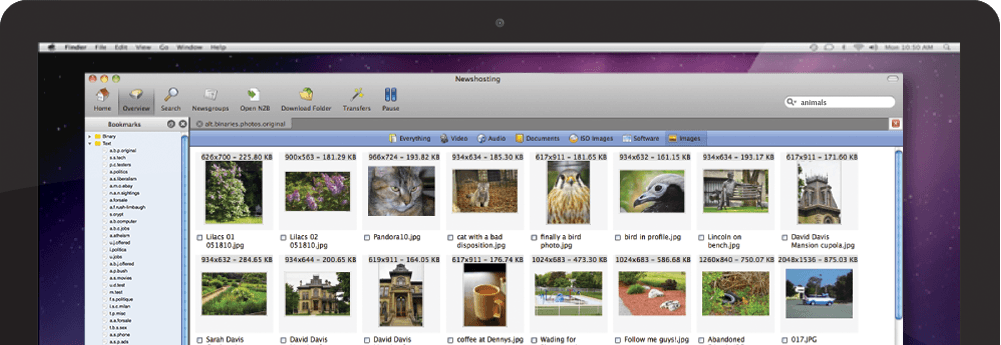
Once you have newsgroups saved in your bookmarks you can begin browsing them. To view the most recent posts in a bookmarked newsgroup,
simply click on the newsgroup's name and the main panel will refresh with the content and posts for that group. In the main panel, you can scroll and
page through the posts. While browsing a binary group you can sort them into the types of files they contain: videos, audio, documents, ISO, software and
images or you can simply choose to view them all (the default view).
5. Tips and Tricks
Many shortcuts are available to you in the interface simply by right clicking an item. For instance, right clicking on any file group will bring up options and actions available specific to that group, like "Downloading" immediately or "Show details". Right clicking on items being actively downloaded
will allow you quick access to canceling that download or moving it around in priority.
Previews and Automatic Previews are sometimes available for video file groups. If a preview is available for a video, a button on the right side of
the properties menu will be shown. There's also an icon alerting you to available previews.
Though many players work well, VLC Media Player is an open source, free media player that works best for viewing and using all types of video and
audio content you find on Usenet. It can be found here.